How to Revert to Windows 11’s Old Right-Click Menu (November 2026 Fix)
I’d already brought back the old right-click menu on my Windows 11 PC. Then the late October update put the short menu back, and the fix I’d used stopped working. The two lines below brought the old menu back. You don’t need an app or admin rights, and two more lines undo it.
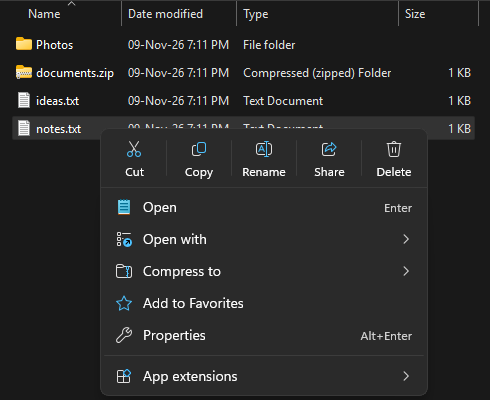
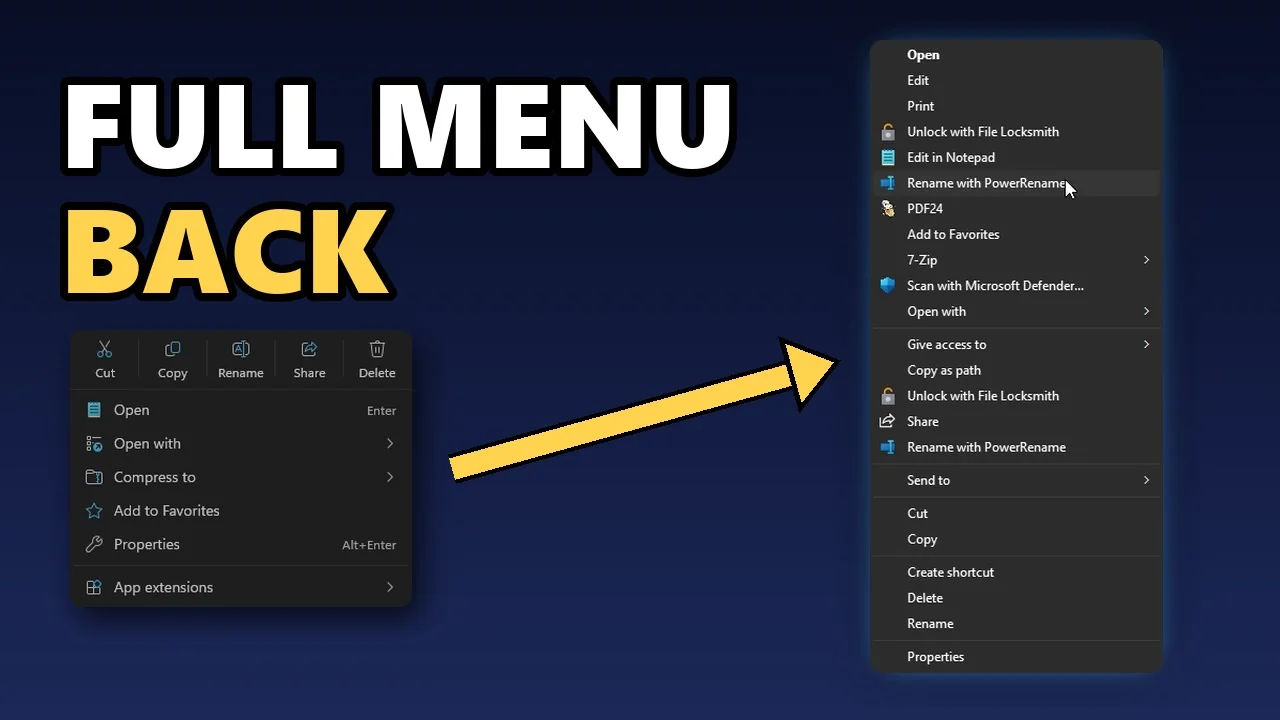
Bring back the old menu
- Click Start, type
cmdand press Enter. Command Prompt opens. - Click Copy on the first box below. Click inside Command Prompt, press Ctrl+V to paste, then press Enter.
- Do the same with the second box.
reg add "HKCU\Software\Classes\CLSID\{86ca1aa0-34aa-4e8b-a509-50c905bae2a2}\InprocServer32" /ve /freg add "HKCU\Software\Classes\CLSID\{51668040-5e31-4023-bbe3-149163bd80f1}\InprocServer32" /ve /f- Each line prints “The operation completed successfully.”
- Restart File Explorer: press Ctrl+Shift+Esc to open Task Manager (or click Start, type
task managerand press Enter). Under Processes, right-click Windows Explorer and click Restart. The taskbar goes blank for a moment and comes back. If you can’t find Windows Explorer, typeexplorerin the search box at the top of Task Manager. - Right-click any file or folder. The old menu opens.
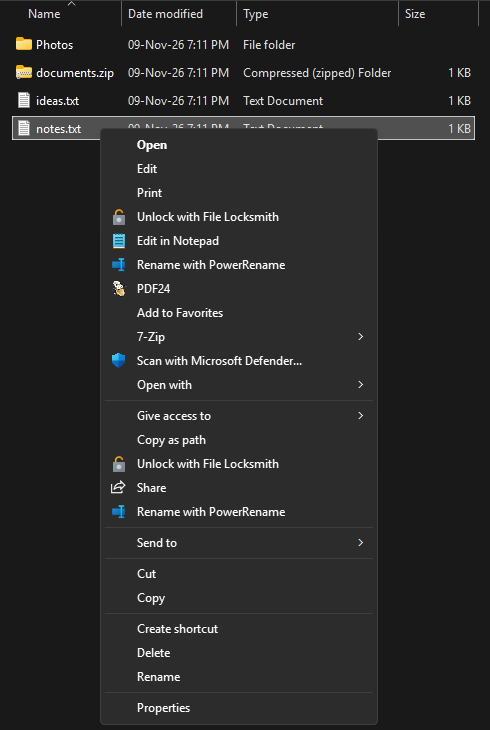
Both lines change only your own Windows account. That’s why a normal Command Prompt is enough, and why other accounts on the PC keep the short menu.
Undo it
Run these two lines the same way, then restart File Explorer as in step 5. The short menu comes back.
reg delete "HKCU\Software\Classes\CLSID\{86ca1aa0-34aa-4e8b-a509-50c905bae2a2}" /freg delete "HKCU\Software\Classes\CLSID\{51668040-5e31-4023-bbe3-149163bd80f1}" /fIf a line says it can’t find the key, that key is already gone. You can ignore it.
Other ways, without the registry
Hold Shift
Hold Shift while you right-click a file or folder. The old menu opens that one time, and nothing on your PC changes.
Turn on Show more options in Settings
The short menu stays, but Show more options comes back at its bottom. Click it to open the old menu.
- Click Start, then Settings (the gear icon). Or press the Windows key and I together.
- In the list on the left, click Personalization.
- Click Context menu. Scroll down if you don’t see it.
- Under Additional options, turn on Show more options.
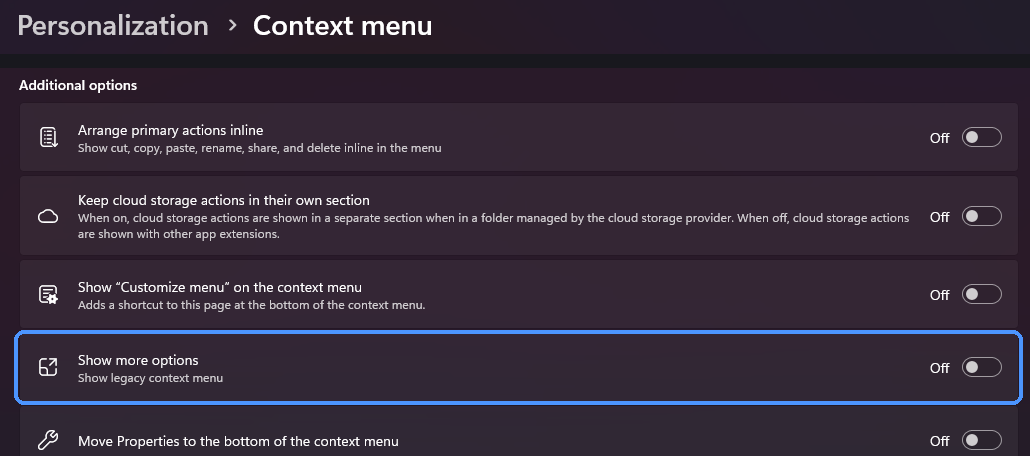
Or open the page directly: press the Windows key and R together, paste ms-settings:personalization-contextmenu and press Enter. Then do step 4.
Or search for it: in Settings, type context menu in the Find a setting box at the top, click Context menu, then do step 4.
The same page can put Send to, Print, Create shortcut, Copy as path and Rotate image back in the short menu. Under App extensions, you choose which apps show their entries in the short menu itself. If your Settings has no Context menu page, your PC doesn’t have the new menu yet.
Tested on
Windows 11 Home 26H2, build 26300.9818, with the late October 2026 update (KB5127936).
Sources
- Windows Latest: Windows 11’s faster, customizable right-click menu released, 29 October 2026: Shift and right-click opens the old menu, and the Context menu page in Settings.
- Microsoft Q&A: How to bypass the new context menu, 2 December 2025: the first registry line.
- My own test, November 2026: the PC above, the pictures and its Context menu page in Settings.